Running VS Code Browser Workspaces
Introduction
This workload does not require any previous setup to run.
However, if you plan on running code in this workspace (as opposed to just managing a Conda environment).
| VS Code Browser workspaces may require at least 0.5GiB of free RAM. Read more. |
End Goal
-
Submit and manage VS Code Browser workspaces using the Run:AI web UI.
-
Connect to your VS Code Browser workspace.
-
Choose your kernel for running your code with your configured conda environment.
Submitting a VS Code Browser Workspace
-
Enter Run:AI web UI. If you are not logged in - click CONTINUE WITH SSO and fill in your BGU username and password.
-

-
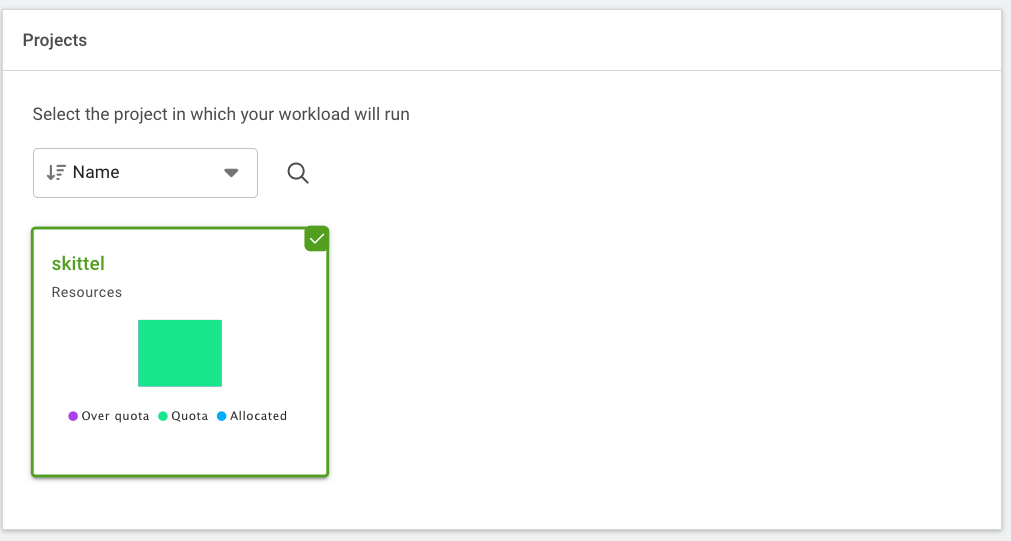
Choose the project configured under your name.
-
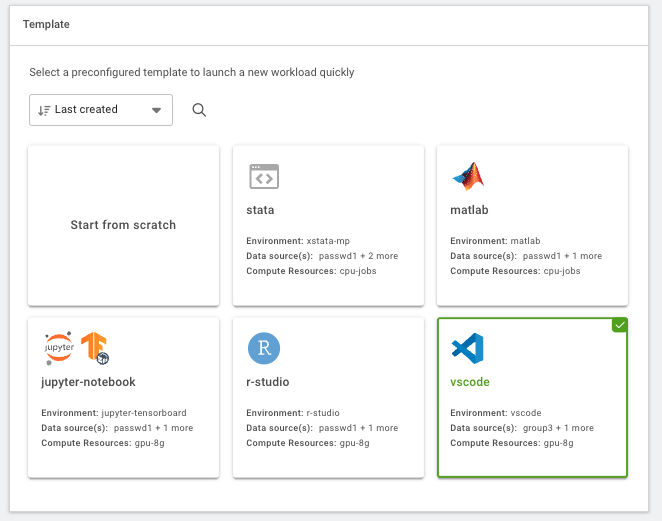
Choose the vscode template.
-
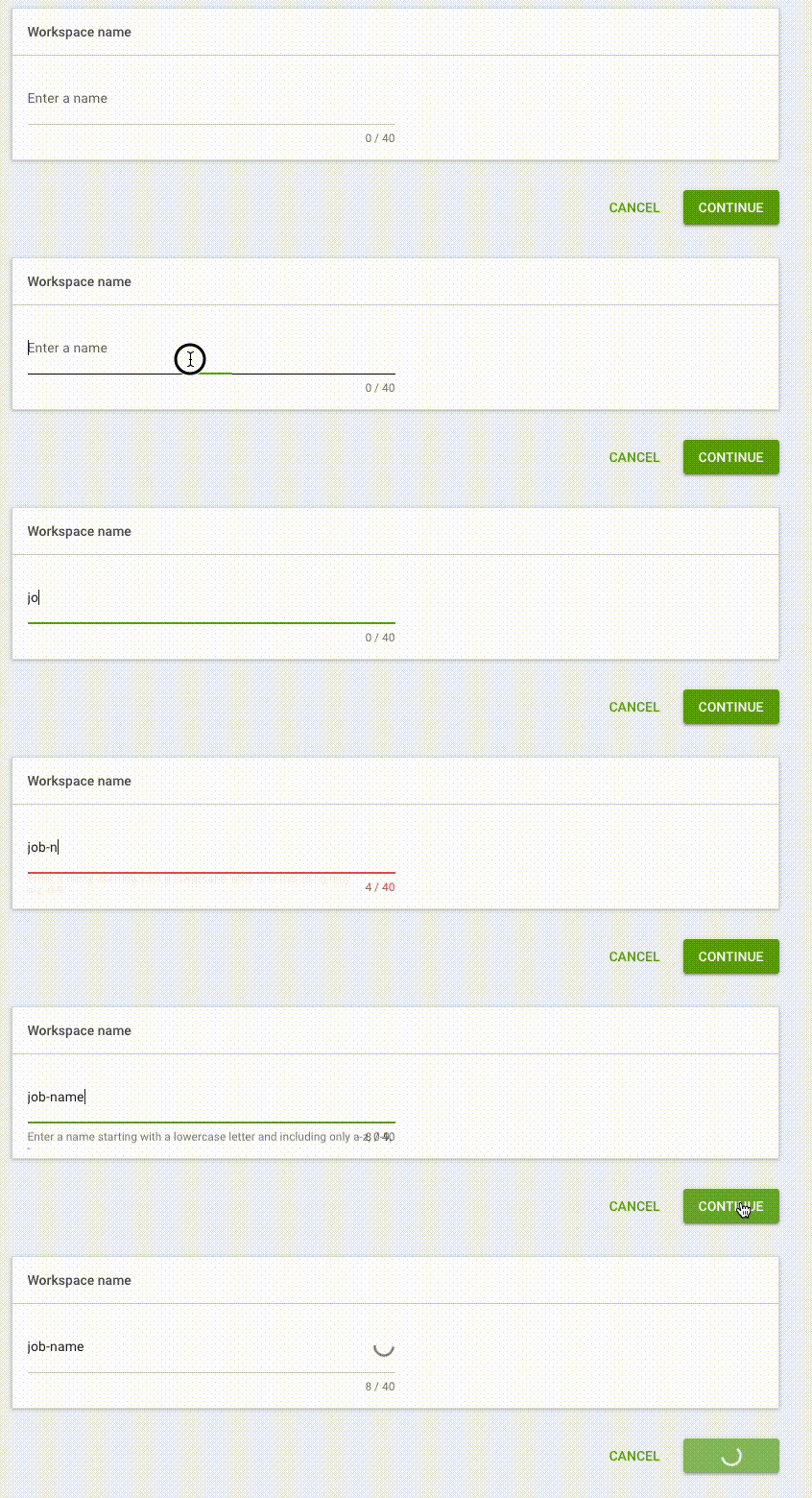
Choose a name for your workspace and click CONTINUE.
-
Wait for the page to reload and then scroll to the bottom and click CREATE WORKSPACE.