Running PyCharm Browser Workspaces
Introduction
This workload does not require any previous setup to run.
However, if you plan on running code in this workspace (as opposed to just managing a Conda environment).
| PyCharm Browser workspaces may require at least 0.5GiB of free RAM. Read more. |
End Goal
-
Submit and manage PyCharm Browser workspaces using the Run:AI web UI.
-
Connect to your PyCharm Browser workspace.
-
Choose your kernel for running your code with your configured conda environment.
Submitting a PyCharm Browser Workspace
-
Enter Run:AI web UI. If you are not logged in - click CONTINUE WITH SSO and fill in your BGU username and password.
-

-
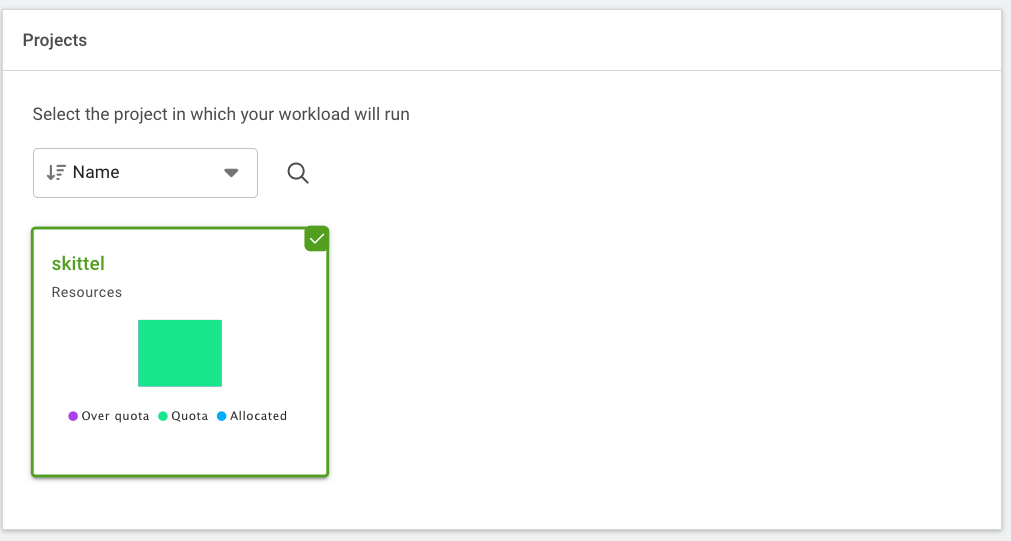
Choose the project configured under your name.
-
Choose the pycharm-web template.

-
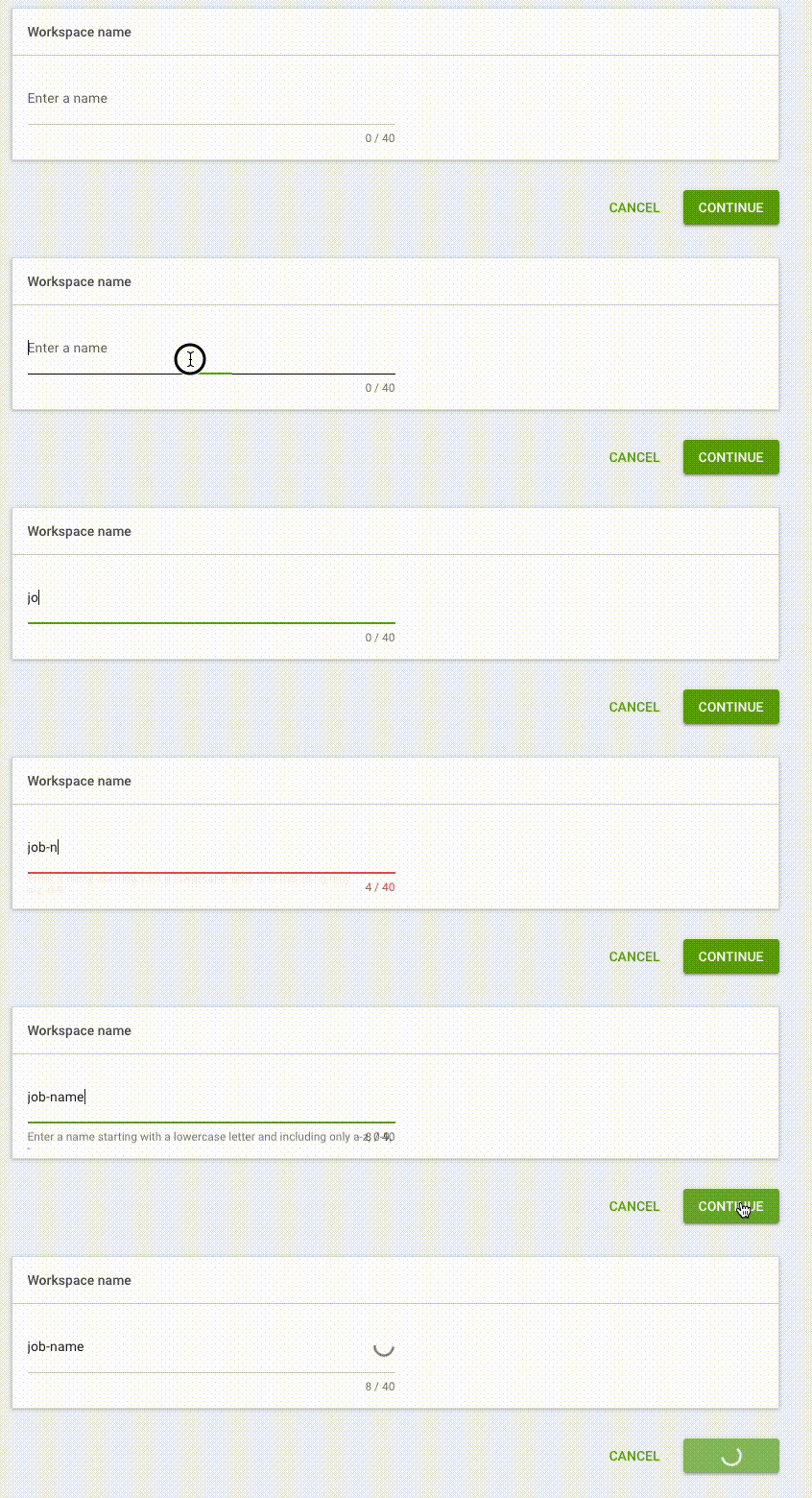
Choose a name for your workspace and click CONTINUE.
-
Wait for the page to reload and then scroll to the bottom and click CREATE WORKSPACE.

Connecting to Your Job
-
After the page reloads back to the "Workloads" page, find your workspace and choose it, then click CONNECT

|
IF you are getting the following message select allow this will give you the option to copy to and from the job: 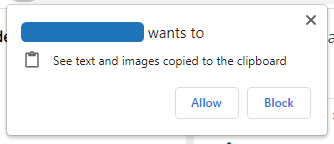
|
Activating PyCharm Pro
To activate PyCharm press the "Unlock Pro" button

Then press on Activate Pro, a browser will open and yuo will need to login or register to PyCharm using your organization email address.

|
If you are getting the foloowing message Click on Enable Browser. 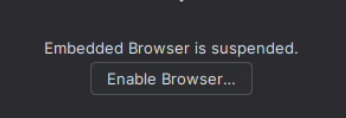
Then select disable sendbox 
Reload the PyChram and activate pro. |