MobaXterm Setup and Usage
Setting Up mobaxterm
Installation
Download MobaXTerm here. The free version is suitable for most users.
Create and Save a New SSH Session
Open MobaXTerm and click the Session button.

In the "New Session" dialog, select the SSH protocol.
Fill in the following fields:
-
Remote host:bhn20 -
Check the Specify username checkbox and enter your BGU account username in the text field next to it.
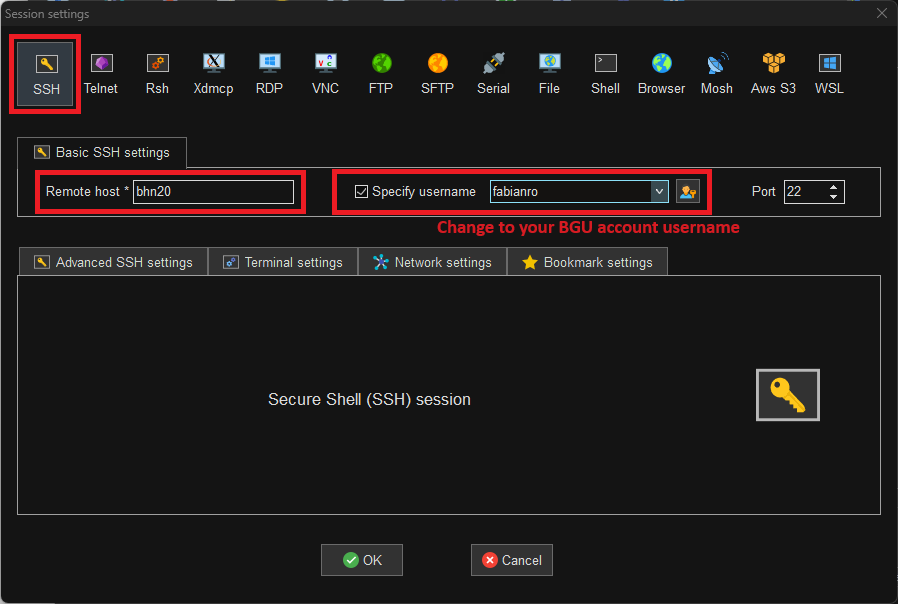
Finish by clicking OK
Testing the Configuration
Your home screen should now show the saved session. Double-click on it, and it should open the session without asking for password[1].


1. If you are prompted to enter a password, most likely your terminal emulator cannot find your private key and you should specify it manually. For mobaxterm this can be done by editing the session (right click on the session → Edit session), in the "Advanced SSH settings" check the "Use private key" checkbox and enter the path/browse for your private key. See SSH key generation step 2 for its path.