VS Code Remote Development Guide For BGU HPC Cluster
Introduction
This guide explains the one-time setup required to configure a VSCode workspace on the BGU HPC cluster. Once configured, you can refer to the streamlined usage guide.
Prerequisites
-
Completed the SSH setup guide.
-
Have access to the BGU HPC cluster with VPN/internal network.
Configuring VSCode for Remote Development
Submit a VSCode Workspace
Use runai-bgu submit to submit a VSCode workspace:
$ ssh bhn20 (1)
$ runai-bgu submit vscode \ (2)
  -n vscode-setup \ (3)
  -c 2 \ (4)
  -m 4Gi \ (5)
-g 0.1 (6)| 1 | Configure SSH connection to bhn20 |
| 2 | Specifies it is a VSCode. |
| 3 | Specifies the name of the job. |
| 4 | Allocates 2 CPU cores. |
| 5 | Allocates 4GiB of memory*. |
| 6 | Specifies the GPU allocation (whole or fractional). If you do not need a GPU, omit this flag. |
Install Remote - SSH VS Code extension
You must first install the Remote - SSH extension to connect to other machines with VS Code.
Connecting to bhn20
Open VS Code and click the  icon on the bottom-left corner (highlighted in red in the following screenshot) and click Connect To Host….

Enter your SSH connection string (ssh <BGU username>@bhn20:<your-port>)

After entering the connection string, a new window of VS Code will be opened, and after a few seconds, you will be prompted to accept the fingerprint. After accepting the fingerprint, the client will be installed on the server, so it may take a while.

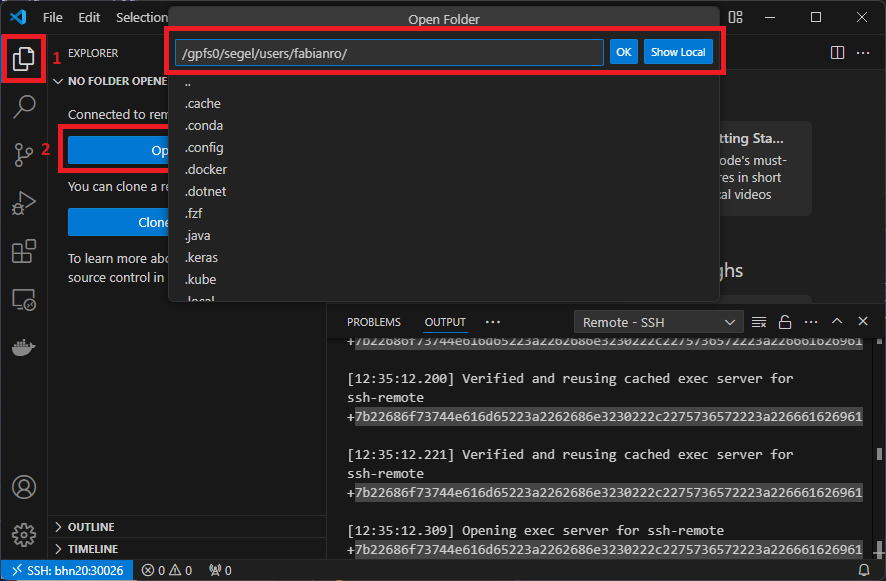
Once the client has finished downloading on the server, you will be able to use VS Code as if it were your machine. All you have to do is open a directory, such as your home folder on the cluster or any project directory under it.
Next Steps
Your VSCode Remote Development setup is done! You can now refer to the streamlined usage guide to start using VSCode for your work.
Good luck!